Packs
A pack is a single .aspack file that adds content to Action Stations: inject templates, prompts, domain profiles, ComfyUI workflows, reference documents and example projects. This guide covers installing packs, reading the review before you install, what happens to your projects when a pack is updated, disabled or removed, exporting your own work as a pack, and validating a pack from the command line.
The file format is specified in docs/packs-format.md. The screenshots were taken with mock providers, an isolated data folder and the sample pack Freight Rail Operations.
What a pack contains
Section titled “What a pack contains”| Kind | What it adds | Where you see it |
|---|---|---|
| Templates | Inject templates, including new inject types. | Templates, inject type lists in the MSEL and deck. |
| Prompts | Replacements for the prompts the app ships, for projects in the pack’s domains. | Prompts, and the project’s generation. |
| Domain profiles | A new kind of organization (freight rail, a port, a water utility) with its systems and threats. | The domain picker on New project and Overview. |
| ComfyUI workflows | Image and video workflows with their bindings. | Workflows. |
| Reference documents | Plans, templates and quick references you can copy into a project. | Documents → Add from pack… |
| Example projects | Ready-made fictional projects. | Projects → Examples. |
A pack carries data only. It cannot contain programs, scripts or plugins (see Security).
The app’s own content is packs too: see Included with the app.
The Packs screen
Section titled “The Packs screen”Open Packs in the sidebar. Installed lists the packs that come with the app (Included with the app) and the ones you installed; Browse lists the packs in the catalogs you added. Install from file…, Install from URL… and Export as pack… are at the top right.
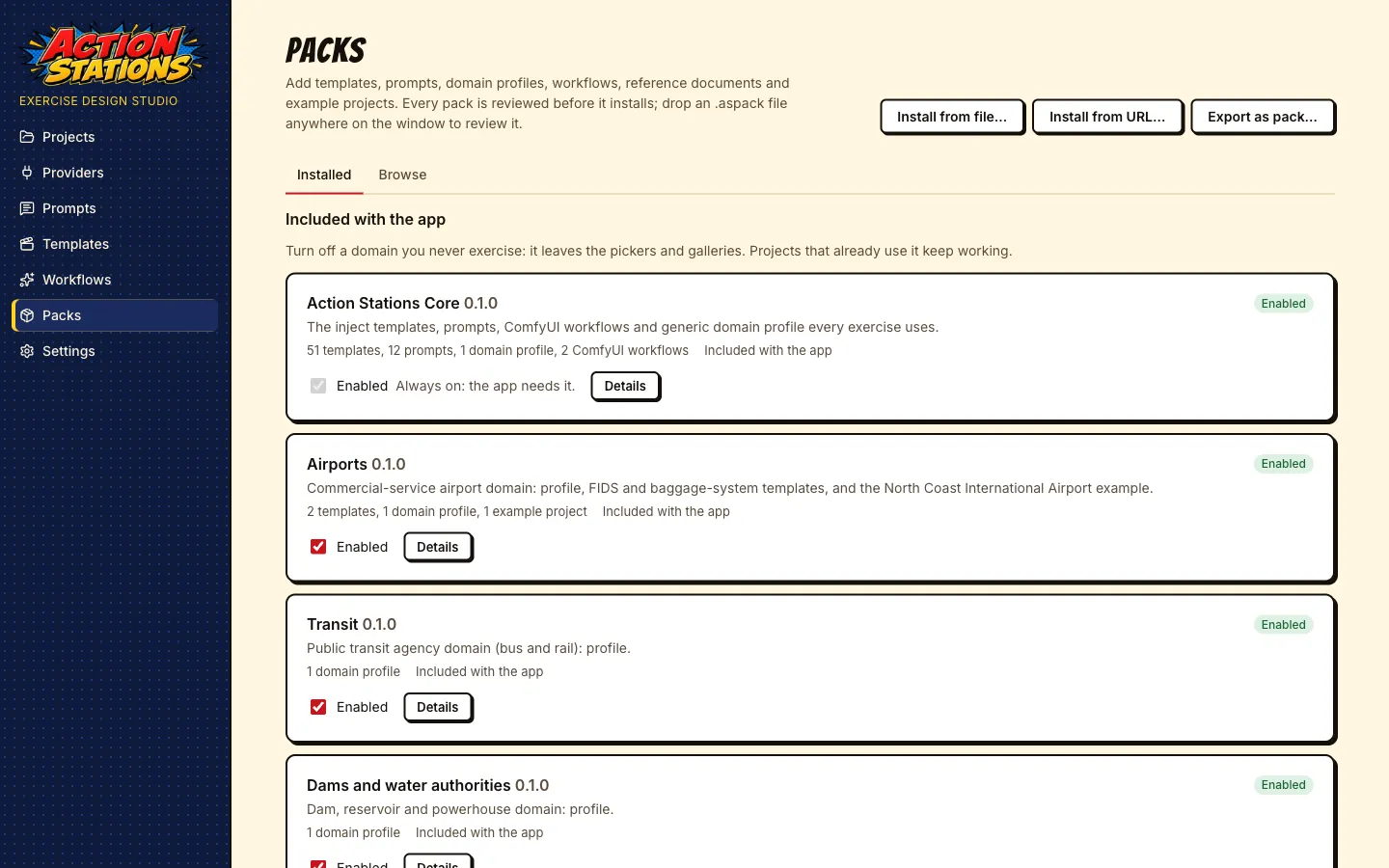
Nothing is contacted until you add a catalog. The app ships with no catalog, never checks for packs at startup or in the background, and fetches a catalog only when you open Browse or press Refresh. An archive is downloaded only when you choose to review it for installing.
Included with the app
Section titled “Included with the app”Everything the app ships is a pack, listed at the top of Installed under Included with the app:
| Pack | What it holds |
|---|---|
| Action Stations Core | The inject templates every domain uses, all prompts, the default ComfyUI workflows, the Generic organization domain. Always on. |
| Airports | The Airport domain, the FIDS board and BHS SCADA screen templates, and the North Coast International Airport example. |
| Water utilities | The Water utility domain and the City Water example. |
| Unmanned systems | The Unmanned systems operator domain and the UAS operations example. |
| Transit, Dams and water authorities, Energy utilities, Healthcare, Campuses, Stadiums and venues, Ports and maritime, Municipal government, Industrial and manufacturing | One domain profile each. |
| Federal continuity (COOP) | The Federal continuity domain: essential functions, alternate and devolution sites, continuity teams, and the evaluation capabilities for continuity exercises. A README names the exercise requirements it assumes. Its catalog-only reference library holds the public FEMA continuity directives. |
| K-12 schools, Commercial facilities, Food and agriculture, Telecommunications, Data centers and IT services, Financial services | One domain profile each, with a README naming the plans, reporting deadlines and copyrighted references the domain relies on. |
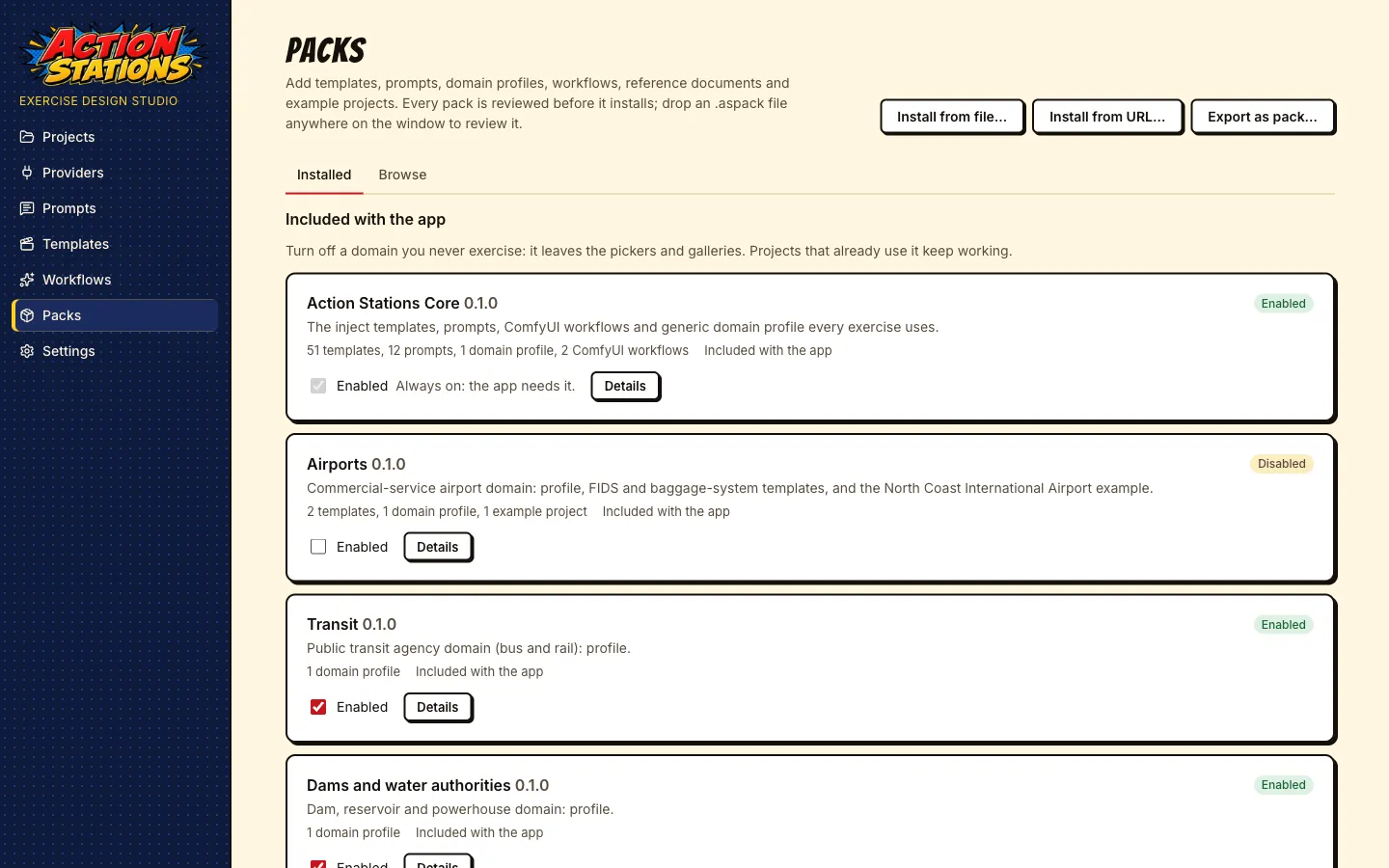
Items from these packs show Included:
Turn a domain off with its Enabled switch if your organization never runs that kind of exercise. Its domain leaves the domain picker, its templates leave the Templates screen and the inject type lists, its example leaves Projects → Examples, and its reference documents leave Add from pack. Projects you already made on that domain keep working: they keep their domain profile, still render its templates and lint the same way. Turn it back on at any time. Action Stations Core cannot be turned off.
An installed pack can replace an included template, prompt or workflow (the review says, for example, Replaces Action Stations Core: tweet), but it cannot reuse an included domain’s id or name, or an included pack’s id.
Credit and community packs
Section titled “Credit and community packs”Each pack names its author and anyone else credited (templates, prompts, documents, translation, review). Browse shows “By Ann and 2 contributors”; the review screen and an installed pack’s details list everyone with their roles, and the search box matches contributor names. A pack whose id starts with ai.actionstations. shows Official; every other pack shows Community. A community pack is reviewed by a maintainer before it is listed, but check the review screen as you would for any pack. When you export a pack, the Metadata step has a Contributors list where you credit translators, reviewers and others with a name, an optional link and GitHub user, and their roles.
When the catalog lists them, Browse also shows how many people endorsed a pack with a thumbs-up on GitHub and how many organizations confirmed using it, with the date the counts were read. The app does not fetch these itself and does not sort by them. To share a pack, open the issue form linked from actionstations.ai/packs/share.
Install a pack
Section titled “Install a pack”Every way of installing ends on the same review page, and the Install button exists only there. Opening or dropping a file never installs it.
From a catalog
Section titled “From a catalog”A catalog is a list of packs published on a web site. To add the official one:
-
Packs → Browse. With no catalogs, Browse shows the Pack catalogs settings (also in Settings).
-
Press Add the official catalog (actionstations.ai), or paste another catalog’s address into Catalog URL and press Add catalog. Addresses must use
https.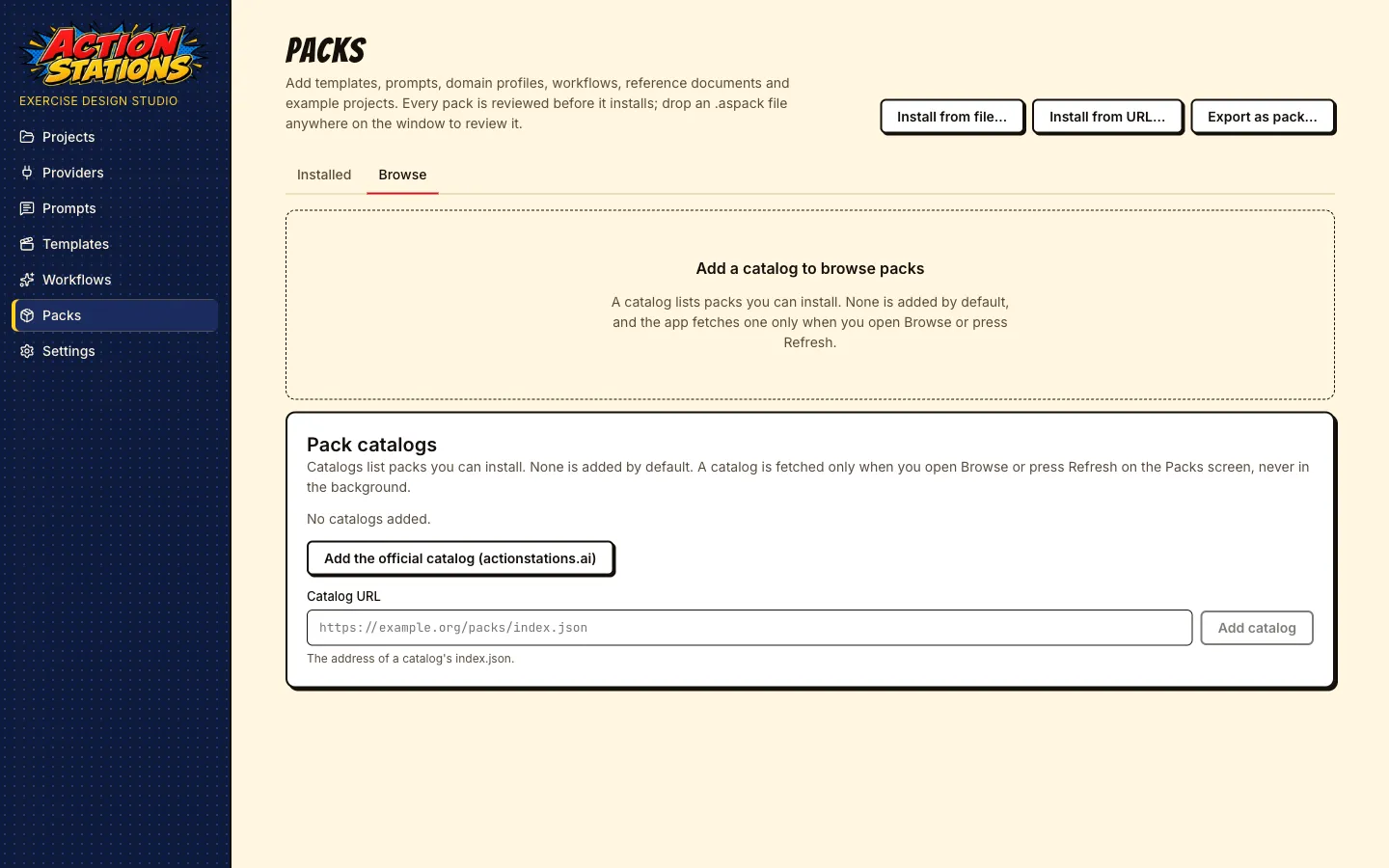
-
Browse fetches the catalog and lists the newest version of each pack, with filters for search text, kind, domain and tag. Refresh fetches again; Manage catalogs opens Settings, where you can remove a catalog. A catalog that fails to load is listed with its error, and the last copy that loaded is still shown.
-
Press Review and install on a pack. The archive downloads as a background job, its sha256 is checked against the catalog, and the review opens.
From a file
Section titled “From a file”Press Install from file… and pick an .aspack file, drop the file anywhere on the app window, or open it from Finder or Explorer. Each of these opens the review.
From a URL
Section titled “From a URL”Press Install from URL…, paste the archive address (https), and if the publisher lists a sha256, paste it into Expected sha256 (optional). Download and review downloads the archive; a download whose sha256 differs from the one you entered is refused.
Minimum app version
Section titled “Minimum app version”Packs state the oldest app version they need (minAppVersion). The app refuses a pack that needs a newer version than yours with a message such as “This pack needs Action Stations 0.3.0 or later”.
Read the review
Section titled “Read the review”The review shows everything the pack would add before anything is installed.
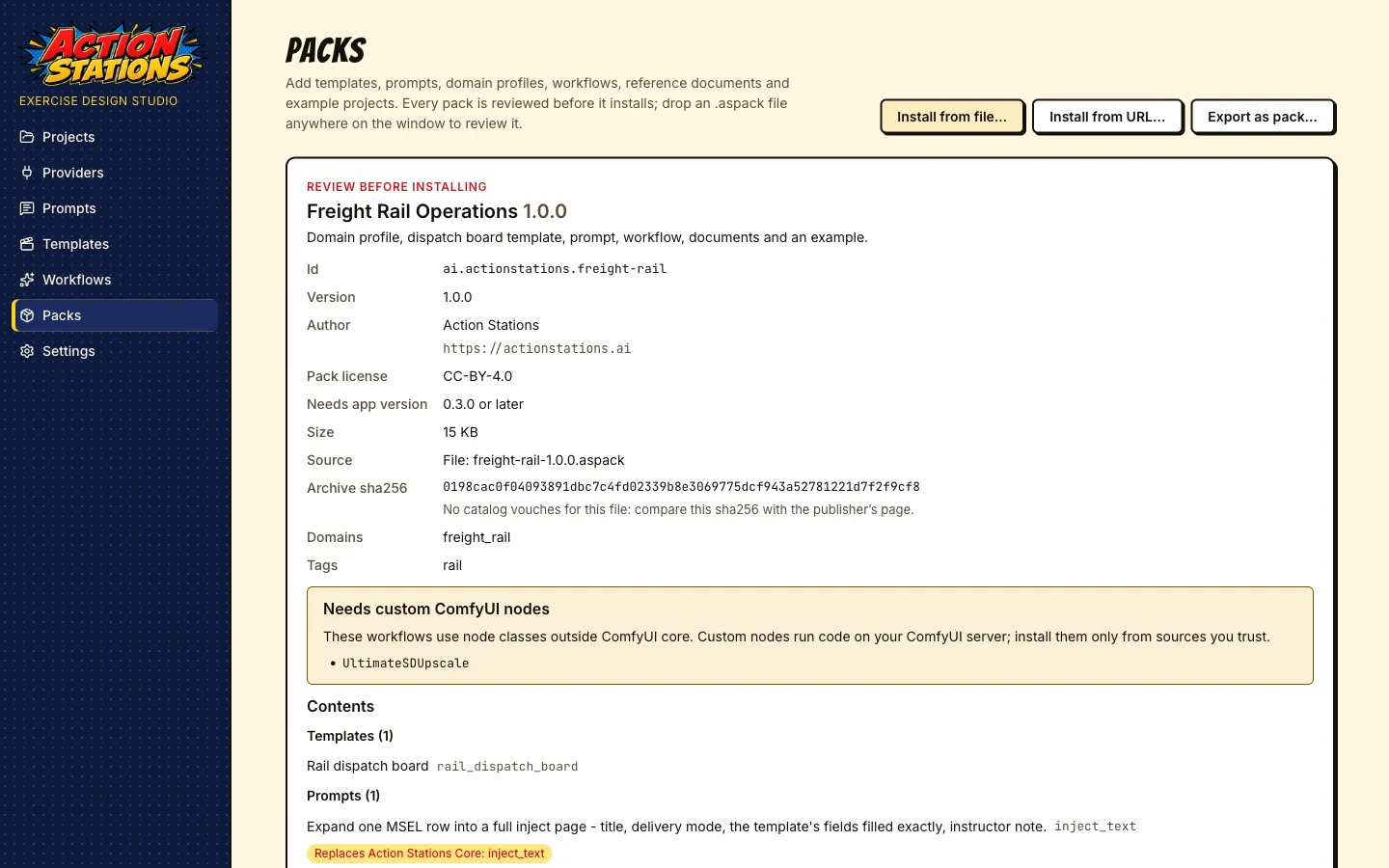
- Id, version, author, homepage, size and source: where the file came from (a catalog, a URL or a file name).
- Pack license: the license of the pack’s own content. It is chosen by the pack author and is separate from the app’s license.
- Needs app version: the oldest app version the pack works with.
- Archive sha256: see What the hashes prove.
- Domains: the domain profiles the pack is for. A pack’s prompts only apply to projects in these domains.
- Needs custom ComfyUI nodes: the pack’s workflows use node classes that are not part of ComfyUI itself. Custom nodes run code on your ComfyUI server. The pack does not install them; you install them in ComfyUI yourself, so get them only from sources you trust. A workflow without its nodes fails in ComfyUI; nothing else in the pack is affected.
- Contents: every item by kind. Replaces Action Stations Core: tweet (or another included pack and item) means the pack’s version will be used instead of the one the app ships.
- Document licenses: the title, source and license of every reference document. Check them before you share anything made from those documents.
- Conflicts: another enabled pack already provides an item with the same id. The pack then installs disabled, with a note such as “Disable Freight Rail Operations to enable this pack”.
At the bottom, the button says what will happen: Install, Reinstall (same version), Update to 1.1.0, or Downgrade to 1.0.0, which also needs the box Replace the installed … with the older … ticked. Cancel installs nothing.
If the archive fails a check, the page is titled This pack cannot be installed and lists each problem with the file inside the pack it concerns. Nothing is installed.
What the hashes prove
Section titled “What the hashes prove”pack.json lists the sha256 and size of every file in the pack, and the app refuses a pack in which any file differs, is missing, or is not listed. A catalog entry also lists the sha256 of the whole archive, and a download that does not match it is refused.
That proves the files are the ones the pack’s manifest (and the catalog, if you installed from one) describes: nothing was damaged or swapped in transit or on a mirror. It does not prove who made the pack, and it does not make the content safe or accurate. Packs are not signed. Trusting a catalog means trusting whoever runs it. For a file or URL with no catalog behind it, the review says “No catalog vouches for this file: compare this sha256 with the publisher’s page”.
Installed packs
Section titled “Installed packs”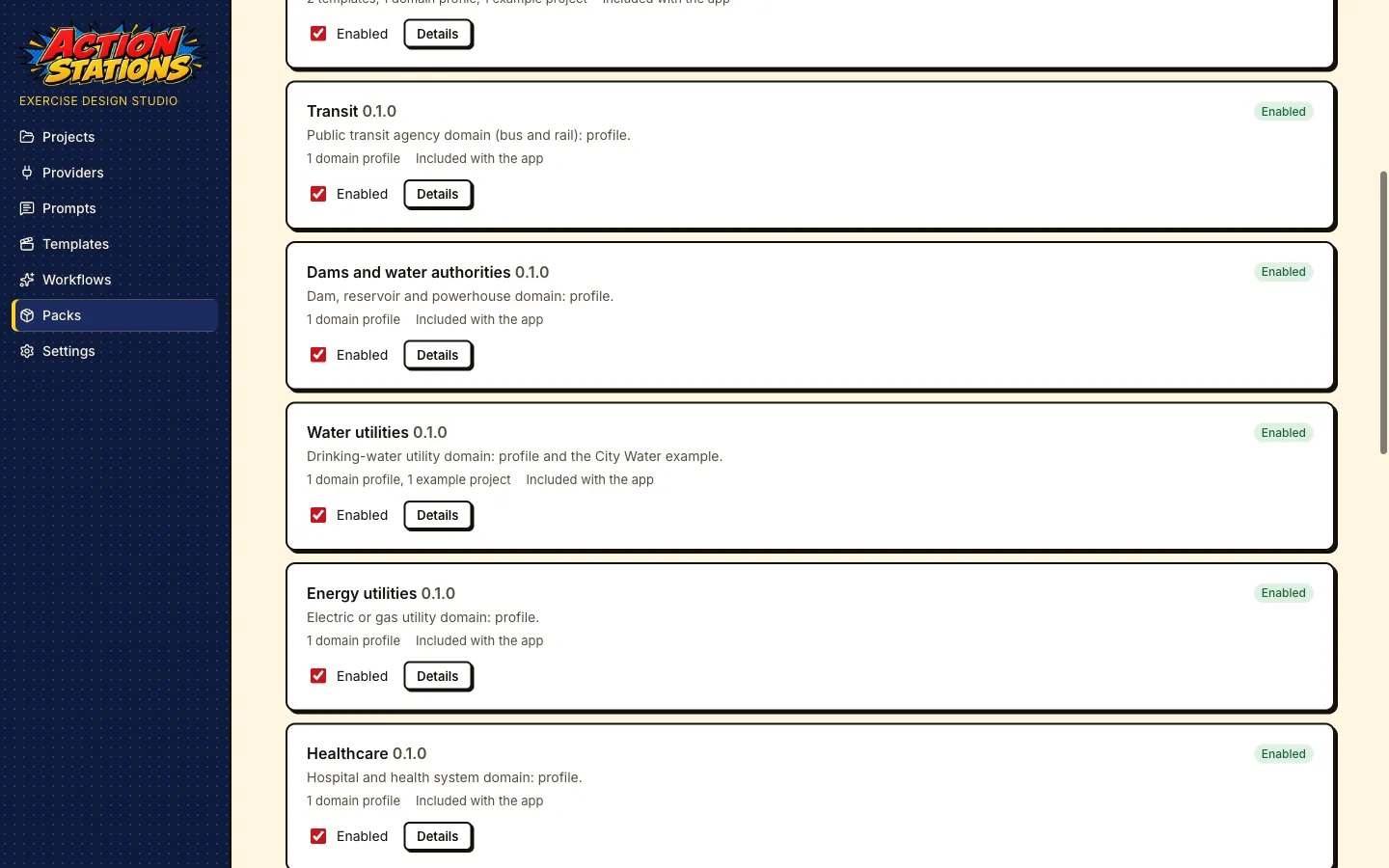
Each installed pack shows its version, counts by kind and source, a status (Enabled, Disabled, Conflict or Broken) and:
- Enabled: turn the pack on or off. A disabled pack keeps its files but adds nothing to the app.
- Details: the id, author, license, install time, archive sha256 and every item.
- Uninstall: removes the pack after a confirmation.
- Update available: 1.1.0 and Review update to 1.1.0 appear when a catalog you added lists a newer version. Updates are worked out from the last catalog fetch, without going online. The update goes through the same review.
- Check files re-hashes every installed file. At startup the app also checks each pack, and a pack whose files changed on disk is shown as Broken and not loaded; reinstall it to repair it.
Installed packs live in the app’s data folder, userData/packs/<id>/<version>/, with the files read-only. One version of each pack is kept.
Using pack content in a project
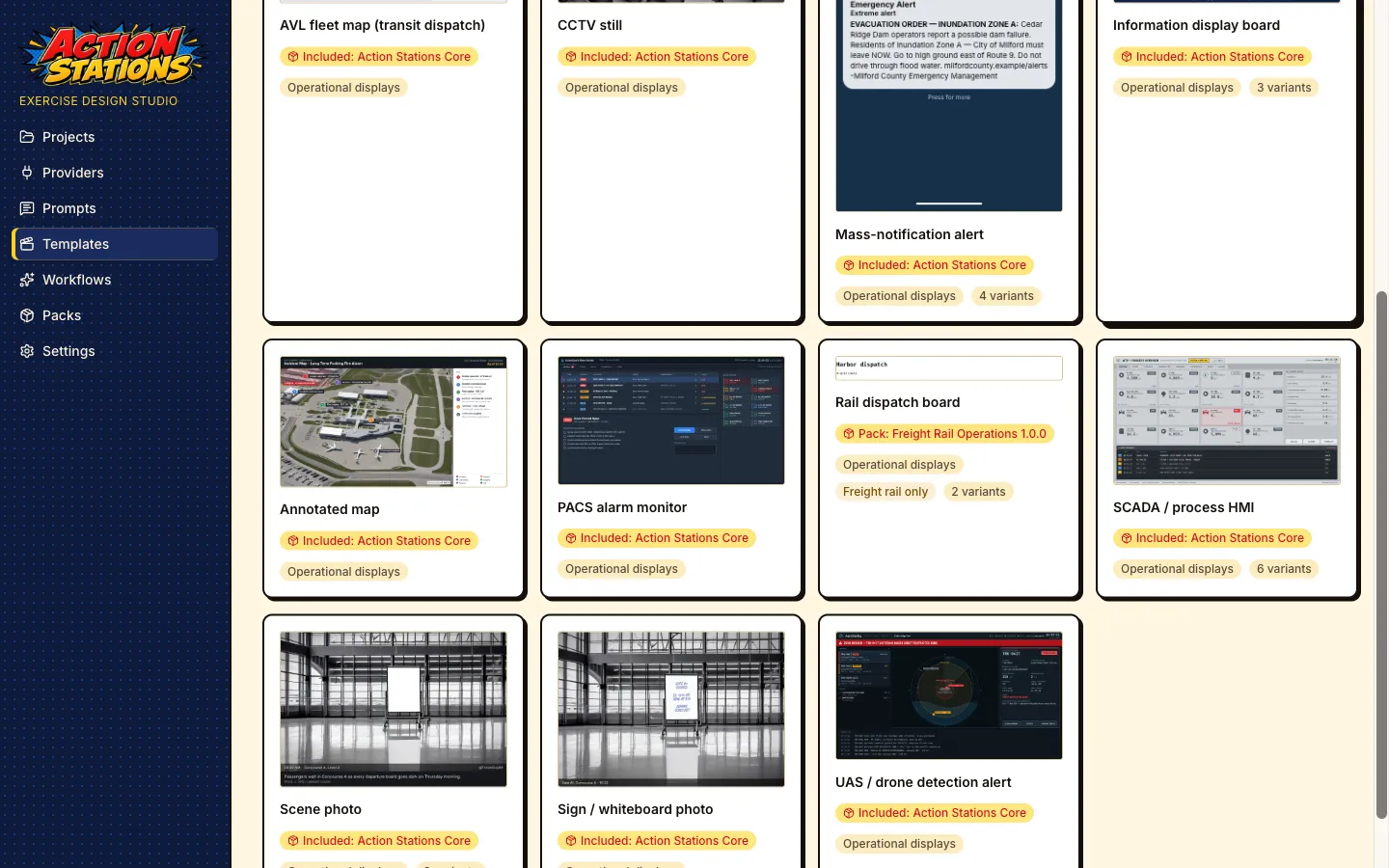
Section titled “Using pack content in a project”Pack items show a badge naming the pack, for example Pack: Freight Rail Operations 1.0.0 (or Included: Airports for a pack that comes with the app), on the Templates, Prompts and Workflows screens, in the domain picker, in the inject type lists and on example projects.
Projects keep their own copies
Section titled “Projects keep their own copies”So that a project keeps working when a pack is updated, disabled or uninstalled, or when you share the project with someone who does not have the pack, the project copies what it uses:
-
Templates: the first time an inject of a pack template’s type is created, saved or rendered, the template is copied to
<project>/templates/injects/<type>/. -
Workflows: the first time a pack workflow renders media for the project, it is copied to
<project>/comfy/workflows/. -
Domain profiles: choosing a pack domain stores a copy of the profile in
project.json. -
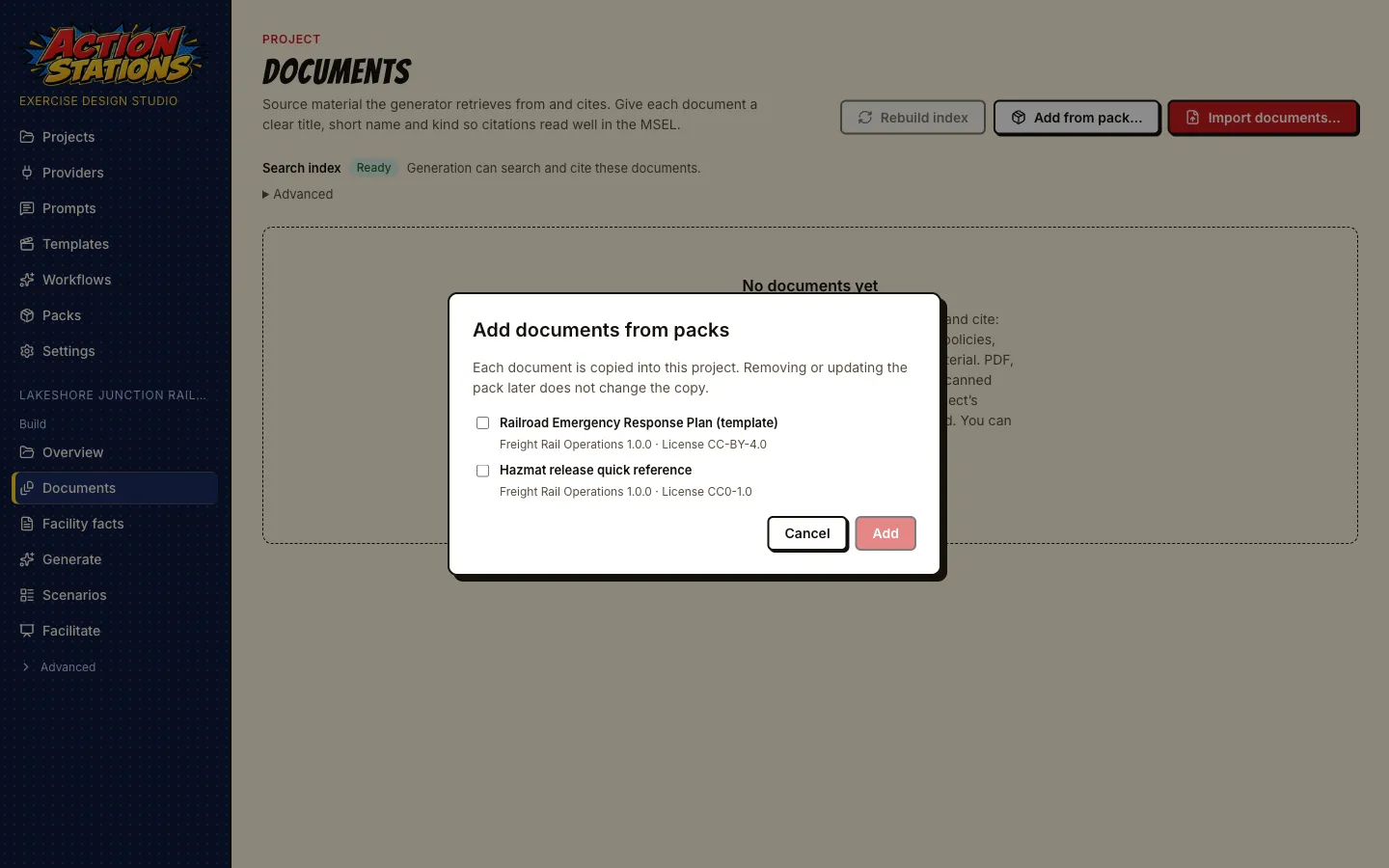
Reference documents: Documents → Add from pack… lists the documents of every enabled pack with their license. Tick the ones you want and press Add; each is copied into the project and indexed like any imported file.
-
Example projects: opening an example copies it, as for the built-in examples.
Each copy is recorded in <project>/packs.json with the pack, version and file hashes. A copy shows a badge such as From Freight Rail Operations 1.0.0, plus:
| Badge | Meaning |
|---|---|
| edited | The project’s copy no longer matches what was copied. The app never overwrites it silently. |
| not installed | The pack is uninstalled or disabled. The project still uses its copy. |
| Update available | The installed pack is a newer version than the one the copy came from. The project keeps its copy. |
For a domain profile, the project’s Overview shows when the installed pack has another version of the profile, with Show changes (field by field) and Update profile from pack. Nothing changes until you press it. Template and workflow copies work the same way, with the project open: open the template on the Templates screen, or select the workflow on the Workflows screen, and press Update from pack next to the badge. The project’s copy is replaced with the installed pack’s version (for a workflow, its graph and the bindings in effect for the pack workflow). If the copy is edited, a dialog first explains that your edits will be discarded; Cancel keeps the copy as it is. Until you update, the project keeps rendering with its copy, and new projects get the pack’s current version.
Pack prompts are scoped by domain
Section titled “Pack prompts are scoped by domain”Pack prompts are not copied. They apply while the pack is enabled, and only to projects whose domain is one the pack lists; a pack that lists no domains applies to every project. A rail pack’s prompts do not change a hospital exercise. A global or project prompt override still wins over a pack prompt (see Prompts → Layers). Every generated output records a hash of the prompt it used.
Update, disable, uninstall
Section titled “Update, disable, uninstall”| You… | Pack items in the app | Projects |
|---|---|---|
| Update a pack | The new version replaces the old one. | Copies stay as they were and show Update available. New projects and items not yet copied use the new version. Prompts change for new generation. |
| Disable a pack | Its templates, prompts, workflows, domains, documents and examples are no longer offered. | Copies keep working and show not installed. Prompts fall back to the next layer (your override, or the app’s default). |
| Uninstall a pack | The files and the record are removed. | Same as disable. |
Export and share a pack
Section titled “Export and share a pack”Packs → Export as pack… builds a pack from your own work: templates in your user layer, global prompt overrides, your ComfyUI workflows, and from one project its domain profile (under a new id), its documents and the project itself as an example.
The wizard has six steps:
-
Choose items. For an example, give it an id, a title, a summary and a Notice (shown as a banner in every project opened from it, for example that the organization is fictional). Example projects are cleaned on export: provider settings, keys, tokens and local folder paths are removed, and a file that still looks like a key or a local path stops the export.
-
Metadata: name, pack id (reverse-DNS, for example
io.github.<your GitHub user>.<name>), version, summary, description, author, domains and tags. -
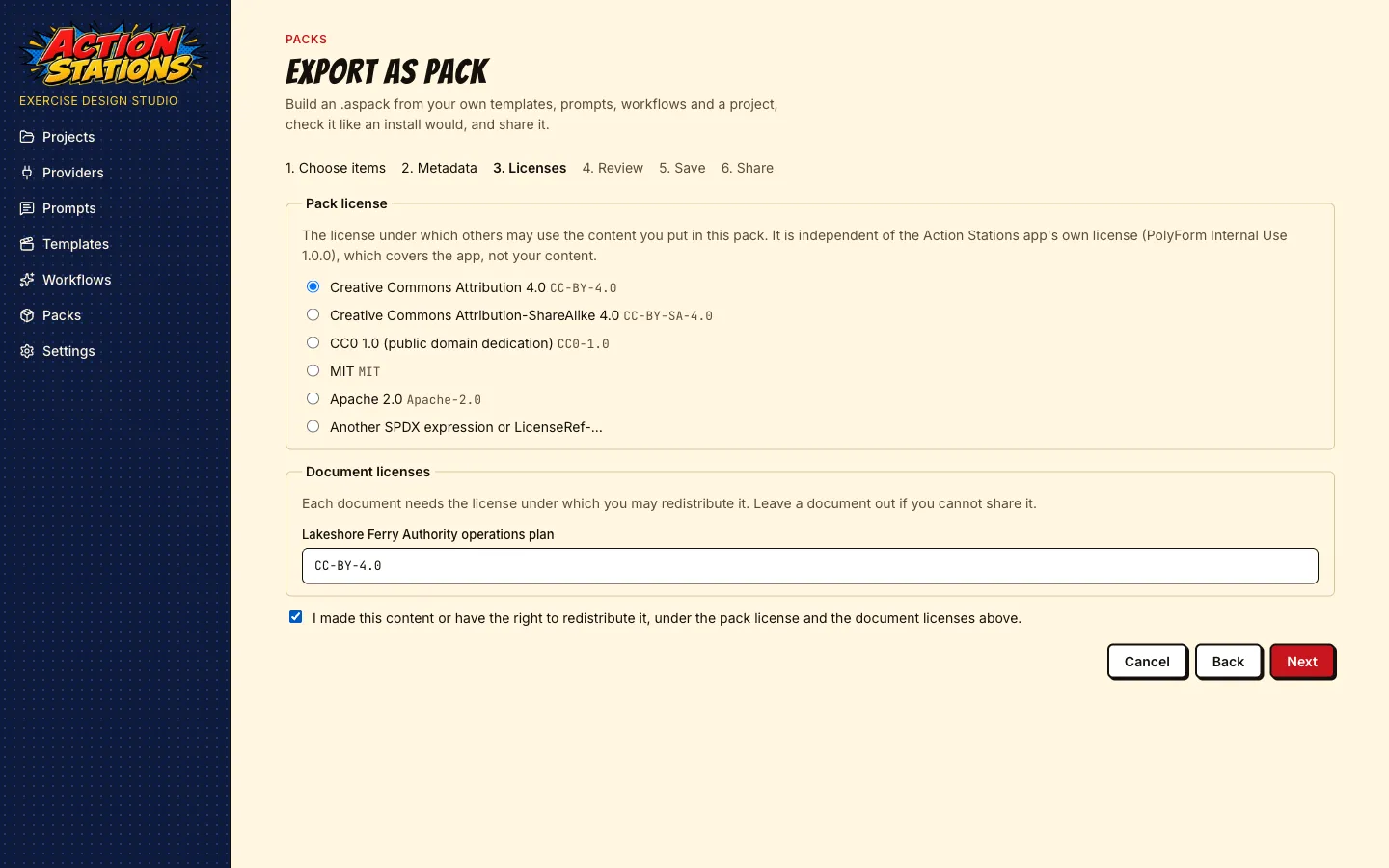
Licenses: choose the pack license (there is no default), give each document the license under which you may redistribute it, and confirm you have the right to share the content. Leave out any document you cannot share.
-
Review: the app builds the pack and checks it with the same reader an install uses. A pack that fails is listed with its problems and cannot be saved.
-
Save: Save pack… writes the
.aspackwhere you choose. -
Share: the file’s sha256 and the steps to publish it.
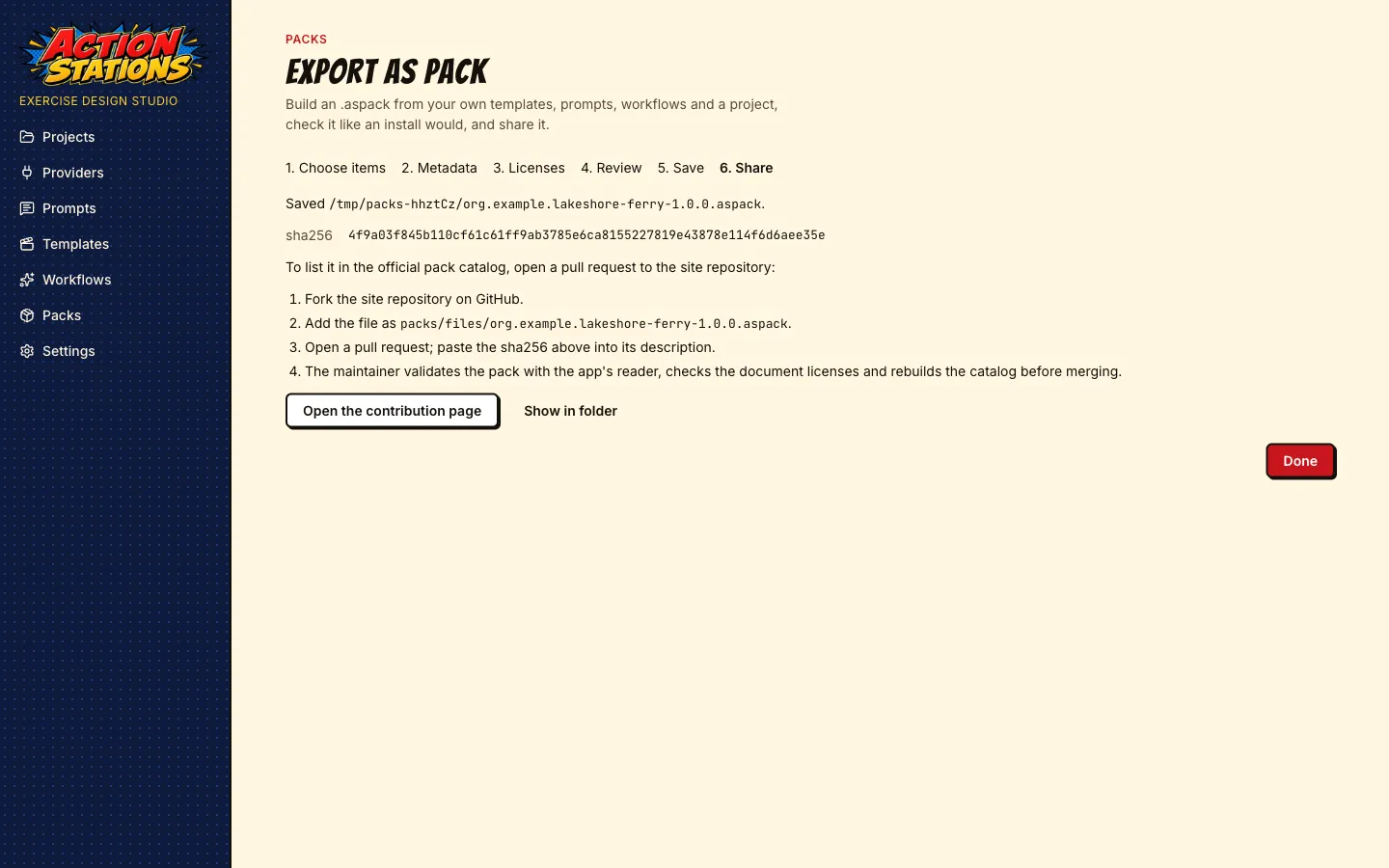
To list a pack in the official catalog, open a pull request to the site repository: fork it on GitHub, add the file as packs/files/<id>-<version>.aspack, and paste the sha256 into the pull request description. Open the contribution page opens the repository in your browser; nothing is sent until you do this yourself. The maintainer validates the pack with the app’s reader, checks the document licenses and rebuilds the catalog before merging. To share a pack privately, send the file and its sha256; the recipient installs it with Install from file… and compares the sha256 on the review.
Validate a pack from the command line
Section titled “Validate a pack from the command line”Pack authors and catalog maintainers can run the app’s own reader without starting the app (Node 20 or later, in a checkout after pnpm install):
node scripts/pack-validate.mjs my-pack-1.0.0.aspackA valid pack prints my-pack-1.0.0.aspack: ok (<id> <version>, <n> files, sha256 <hash>). Otherwise each problem prints on its own line with the file inside the pack it concerns, and the exit code is 1. Several files can be checked at once.
The minAppVersion check compares with the version in the checkout’s package.json. Until that is 0.3.0, add --app-version 0.3.0, or packs that need 0.3.0 are refused:
node scripts/pack-validate.mjs my-pack-1.0.0.aspack --app-version 0.3.0The script also prints a pack’s catalog entry (--catalog-entry --url <base-url>) and checks a whole catalog (--catalog index.json); see Publishing to the official catalog. Template authors can also check a pack’s template previews against golden images (see Template authoring).
Security
Section titled “Security”What a pack cannot do:
- No programs. A pack can only hold the file types its six kinds need (templates, Markdown prompts, JSON, documents, images, fonts and media). Scripts, executables, plugins, SVG images and any HTML other than a template’s
template.htmlare refused. - No files outside its folder. Paths that could leave the pack’s install folder, links, encrypted entries and archives over the size limits are refused before anything is written.
- No changed files. Every file must match the hash in
pack.json, installed files are read-only, and the app re-checks them at startup. - No silent install or update. Every install, update and downgrade goes through the review, and nothing is fetched except when you open Browse, press Refresh or start a download.
Templates get extra checks. A pack template is checked when it is installed and again every time it is loaded (so are your own and project templates, since projects are shared too): scripts, event handlers, remote addresses and similar constructs are refused, not cleaned up. Templates then render in a locked-down window without scripts or network access.
What remains your decision:
- Custom ComfyUI nodes that a pack’s workflows need run code on your ComfyUI server. The pack cannot install them, but the workflows will not work without them; install them only from sources you trust.
- Prompts from a pack change what the model is asked to write for projects in the pack’s domains. Read them on the Prompts screen if a pack’s output surprises you.
- Documents from a pack are indexed and quoted to the model like any document you import.
- Hashes are not signatures. They show a pack was not altered after its manifest and catalog entry were written, not who wrote it. Install packs from catalogs and people you trust.