
Local text-to-speech (mlx-audio)
Voice injects (radio calls, phone calls, voicemails, PA announcements) are spoken by a text-to-speech model, then given radio, phone or PA post-processing by the app. On Apple Silicon the recommended voices run locally under MLX through mlx-audio, whose server speaks the OpenAI POST /v1/audio/speech API. The app’s OpenAI-compatible provider type talks to it directly.
Verified with mlx-audio 0.6.1 on macOS (Apple Silicon). mlx-audio does not run on Windows or Linux; there, use the system voice, a ComfyUI TTS workflow (ComfyUI guide and comfy/workflows/README.md) or a remote OpenAI-compatible speech endpoint.
Models
Section titled “Models”| Model | Use | Output |
|---|---|---|
mlx-community/VoxCPM2-8bit |
Default: natural voices, fast. | WAV, 48 kHz |
mlx-community/Qwen3-TTS-12Hz-1.7B-VoiceDesign-bf16 |
Described voices: each line’s voice comes from a free-text description (“a stressed gate agent on a phone”). Good for SimCell characters. | WAV, 24 kHz |
1. Install the server
Section titled “1. Install the server”With uv:
uv tool install "mlx-audio[server]"mlx_audio.server --helpThis puts mlx_audio.server on your PATH (in ~/.local/bin), in its own isolated environment.
2. Choose where models are stored
Section titled “2. Choose where models are stored”mlx-audio downloads models from Hugging Face on first use into the Hugging Face cache. To keep them with your other models, set the cache location in the server’s environment:
export HF_HUB_CACHE=~/Models/huggingfaceAfter both models have been downloaded once, you can add HF_HUB_OFFLINE=1 so the server never contacts Hugging Face again.
3. Start the server
Section titled “3. Start the server”HF_HUB_CACHE=~/Models/huggingface mlx_audio.server --host 127.0.0.1 --port 8765Check it and fetch each model once (the first request downloads the model, so it takes longer):
curl -s http://127.0.0.1:8765/v1/models
curl -s http://127.0.0.1:8765/v1/audio/speech -H 'Content-Type: application/json' \  -d '{"model":"mlx-community/VoxCPM2-8bit","input":"Tower, this is Ops 2. Runway 23 edge lights just went dark.","response_format":"wav"}' \  -o vox.wav
curl -s http://127.0.0.1:8765/v1/audio/speech -H 'Content-Type: application/json' \  -d '{"model":"mlx-community/Qwen3-TTS-12Hz-1.7B-VoiceDesign-bf16","input":"This is Karen at gate A4. The board says Atlanta but my screen says Anchorage.","instruct":"A stressed middle-aged woman speaking quickly on a phone","response_format":"wav"}' \  -o qwen.wav
Measured with the models already downloaded: each line above rendered in about 7 seconds (48 kHz and 24 kHz mono WAV respectively) while ComfyUI was rendering on the same machine; a two-speaker phone call renders in 1.7 to 3.2 s on an idle machine.
The instruct field
Section titled “The instruct field”Qwen3-TTS VoiceDesign takes the voice description in a field named instruct. OpenAI’s API calls the same thing instructions. The app sends both, filled from each voice line’s voiceStyle, and sends “A clear, neutral adult voice” when a line has none.
Without a description, the VoiceDesign model returns HTTP 200 with an empty body (try the second curl without instruct: no file is written). The app treats empty or truncated audio as a provider error, so this does not produce silent injects.
4. Connect it in the app
Section titled “4. Connect it in the app”Easiest: the setup wizard. Its Media step has a Voice (text to speech) section: enter http://127.0.0.1:8765/v1, pick the voice model, and it adds the provider (with the model as ttsModel) and routes the Audio task to it. Open it from Settings → Run setup again.
By hand:
-
Providers → Add provider. Type: OpenAI-compatible. Name:
Local TTS (mlx-audio). Base URL:http://127.0.0.1:8765/v1. Default model:mlx-community/VoxCPM2-8bit(or the VoiceDesign model). Leave the API key empty.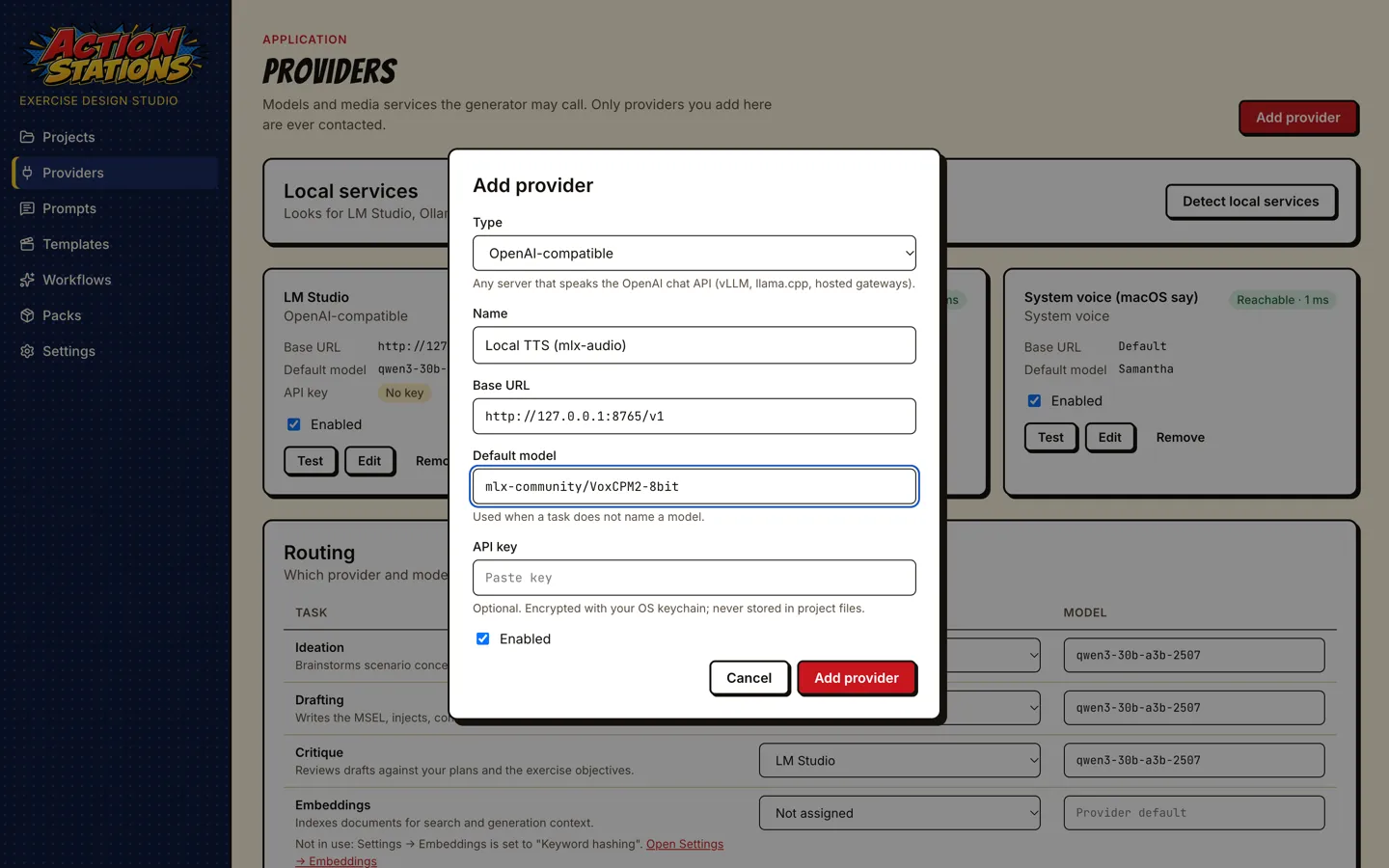
-
The card shows Reachable and “2 models available”. Do not use the card’s Test button for a speech server: it sends a chat request, which mlx-audio does not serve (404).
-
Route the Audio task to it: in Providers → Routing, pick the provider in the Audio row and press Save routing. The Audio row offers every OpenAI-compatible provider, ComfyUI, and the mock provider; only the one serving
/v1/audio/speechcan speak, and a provider routed to a task it cannot do (an OpenAI-compatible server on the Image row, for example) fails with a message naming the task.
Voice lines are produced by the inject media stage: Render all media on a scenario’s Injects tab, or Regenerate media… in the inject editor, for radio calls, phone calls, voicemails and PA announcements.
Voices per speaker
Section titled “Voices per speaker”Options in the provider’s options (see Advanced provider options):
ttsModel: a speech model different from the provider’s default model.voice: default voice id;voices: a map from speaker name to voice id.speakerGapSec: silence between speakers when lines are joined (default 0.35 s).
Each voice line is one request; the clips are joined into one WAV, and the app’s post-FX (radio band-pass, phone compression, PA ambience) are applied afterwards whichever provider produced the audio. With VoiceDesign, the same speaker can sound different from line to line (#108).
Troubleshooting
Section titled “Troubleshooting”| Symptom | Fix |
|---|---|
command not found: mlx_audio.server |
Add ~/.local/bin to your PATH (uv tool update-shell), or run uv tool install "mlx-audio[server]" again. |
| The first request hangs for minutes | The model is downloading into the Hugging Face cache. Wait, or pre-fetch it with the curl commands above. |
| Requests fail when offline | A model is missing from the cache while HF_HUB_OFFLINE=1 is set. Unset it, fetch the model once, set it again. |
| Empty WAV or “empty audio” provider error | VoiceDesign without a description, or a server-side error reported mid-stream. Check the server’s terminal output. |
System voice (any platform)
Section titled “System voice (any platform)”When no TTS server is available, the System voice provider speaks voice lines with the operating system’s own engine. It needs no server, no key and no network:
| Platform | Engine | Install |
|---|---|---|
| macOS | say |
Built in. |
| Windows | SAPI through PowerShell System.Speech |
Built in. |
| Linux | espeak-ng (or espeak) |
sudo apt install espeak-ng (or your distribution’s package). |
- Open Providers and press Detect local services. A System voice row appears only when an engine is installed; press Add. (Or Add provider → System voice.)
- In Routing, assign Audio to the system voice.
- Optional: set Default voice (for example
Samanthaon macOS,Microsoft Zira Desktopon Windows,en-gbfor espeak). When a call has several speakers and no per-speaker voices are set, each speaker gets a different installed voice (on espeak, a different variant such asen-us+f3).
The output is WAV and takes the same radio, phone and PA post-processing and MP3 export as any other voice. System voices sound synthetic next to VoxCPM2 or Qwen3-TTS, so use them as the fallback. Options (edit settings.json): engine (say, sapi, espeak-ng, espeak) to force one, voices to map speaker names to voices, speakerGapSec, timeoutMs.